Table
Tables display data in rows of adjacent columns. This visualization allows viewers to perform analytical functions such as grouping, sorting, and filtering. Tables are best suited for viewing the raw data in a dataset or for analyzing multiple aggregations of data grouped by one or more categories. Tables support the display of an unlimited number of columns and rows, allowing users to view the raw unaggregated data before performing additional analysis.

Create a Table
You can create a table using one of the following techniques:
- Drag and drop fields from the Data panel onto the Column shelf.
- Drag and drop fields into the top table guideline with the label Drop column as column after pausing the cursor over the table.
The user can review which fields from the Data panel are part of the table at the top of the window in the columns (Group shelf).


You can sort data in each column in ascending or descending order, remove the sorting, or remove the column from the table, using the options (three-dot) menu of the column pill. Use the drag handle on the left side of the column pill to change its position or remove it from the table. You can also perform these actions in the canvas.
Table charts support multi-column sorting in Design and Interaction mode. For more information, see Sorting in Tables.
The header of each column defaults to the name of the data column that is selected for that column. You can change the text using the Edit option from the options (three-dot) menu on the table column header.

Grouped Tables
You can create this type of table by dragging and dropping columns from the Data panel onto the Columns and Groups shelves. In this scenario, the table treats fields in the Group shelf as a group, while the fields in the Column shelf are aggregated within the selected groups.

You can also create a grouped table by pausing the cursor over the chart and using the vertical and horizontal guidelines that display.

Style the Table
In the Configuration Panel on the right of the Chart Builder, you can style different aspects of your chart.
General
The General section is available for all chart types, and the options vary depending on the chart selected.
Self-Service Options
This panel provides several options that enable end users to personalize their tables. Customizations made in a Dashboard are saved for the end user. In embedded scenarios, the clientid must be provided to save the personalizations.
| Option | Description |
|---|---|
| Filtering | Enables the Filtering option for end users to add filters to the chart. For more information, see Filters. |
| Column Resizing | Enables end users to change the width of columns inside the table. |
| Column Arrangement | Enables end users to drag-and-drop columns to change their order inside the table. |
| Visualization Options | Enables end users to select whether to display the values inside each column as values or bars. |
| Sorting | Enables the Sorting option for end users to apply sorting to the table. The Sorting option supports both multi-column and individual column sorting. For more information, see Sort Tables. |
| Add/Remove Columns | Enables end users to select which columns to hide or display. |
| Add/Remove Groups | Enables end users to add or remove groups in a grouped table. |
| Change Column Aggregations | Enables end users to change the aggregation used inside columns. Only applies to columns inside a grouped table. |
| Download | Enables end users to download the chart or its data in different file formats. By default, all formats are selected. |
Totals
Use this panel to define the total and subtotal of chosen values displayed in the last row of the table or the group.

| Option | Description |
|---|---|
| Columns | Select the columns to act on. All columns are selected by default, but you can remove them as needed. |
| Total | Select the type of aggregation to display (Select All, Average, Median, Count, Distinct Count, Minimum, Maximum). |
| Level | Determines where the aggregation is applied (table level or group level). This feature is enabled if you have groups present. |
| Table Calculations | Add a calculation to your table. For more information, see Table Calculations. |
| Aggregated Formulas | When you group the table, the panel displays an option to add a table formula to your data. |
| Allow Pagination | In ungrouped tables, you can distribute data across pages by checking the pagination option. The number of records for each single page can be set manually in Records per page (the limit is 1,000). This feature displays information about total records in the table, the number of records per page, and the current page in relation to the page set. |
| Max Groups | This option displays for grouped tables (when you add at least one column to the Groups shelf). It’s set to 50 by default and has an upper limit of 10,000. |
Comparison
Use this section to select a date (dragged into the Date Column field) to compare the value of the selected column, aggregated over a defined time period (selected in the Time Period dropdown) to the same value from another time period (set in the Comparison dropdown).
You can select Time Period and Comparison date periods from predefined values in their respective dropdown lists, or set custom ranges using the last option in each dropdown.
- Time Period - Period to apply the indicator value for aggregation. For example, “Sales of the Last Quarter”.
- Comparison - Period the indicator should compare the Time Period to.
- Add Comparison Column - Add as many comparisons as there are numeric columns in the table’s Columns shelf.
- Column - In each Comparison column, select the numeric column (currently in the Columns shelf) from which to display comparisons.
- Type - Display the higher/lower difference as a percentage or the numeric value.
For more information, see the Create Comparisons in Tables tutorial.
Styles
Use the Styles section to control visual elements such as colors and labels. This chart type supports the following specific options.
-
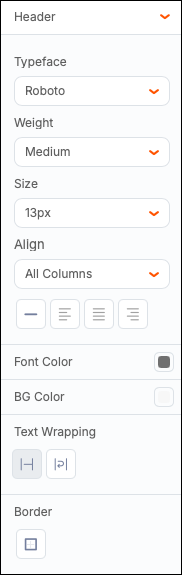
Header - Manage header features such as font, weight, size, and color of the text, cell color and borders. You can also control text wrapping within the header row.
-
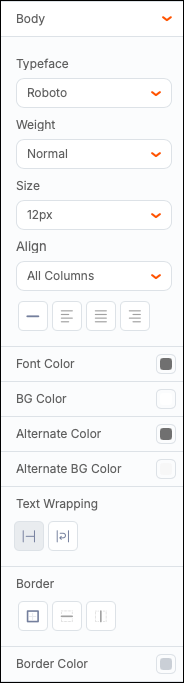
Body - Manage the font, weight, size, and color of the text, as well as cell color and borders for the rest of the cells in your table. You can also opt for alternating colors of the foreground and background of the table rows, enable text wrapping, change the type of border and modify its color.
-
Resize Rows - Set a height for your rows. To adjust the column width, move the column borders manually.
Format
You can apply conditional formatting to your table charts.
-
Select +Add Condition.
-
Select color options:
- Color of the text.
- Color of the cell to show when your condition is met.
- Outline for the cell or highlight it in the chosen color.
-
Select a column, then set the operator and decide if the condition applies to a specific column or the entire row.
Select Remove to remove the conditional formatting.

The following example highlights all orders where the quantity is 1,000 units or more.

In ungrouped tables, you can include a column that hasn’t been included in the table. In the dropdown menu, you can see Chart Columns and Other Columns.

Trend Chart
You can analyze the trend of any aggregated column, based on the data in any other column (usually a date), by using the Trend Charts feature within a grouped table cell. The trend is depicted as a line or bar chart that displays the following highlighted values:
- Start value (gray)
- End value (gray)
- Minimum value (yellow)
- Maximum value (red)


These values are also displayed in a tooltip when the cursor pauses on each chart.
Trend Charts can be added in one of the following ways:
-
From the Trend Chart command in the options (three-dot) menu of the aggregated Column Pill.

-
From the Configuration Panel, by selecting the +Add Trend Chart button, selecting the column to chart and the one to use for the trend.
-
Chart Type - Select the bar or line option from the respective icons. The default is a line.
-
Column - Select values to display in the chart.
-
Trend by Column - Date or Numeric data types.
If Trend by Column is a date data type, you can apply:
- Date Grouping - Group your dates by year, quarter, months, weeks, and days.
- Time Period - Select a period to display in the trend analysis (this year, last year, this quarter, last quarter, this month, last 6 months, and so on.).
If Trend by Column is a numeric data type, you must limit the data points by setting the Max Data Points (default is 50).
-
Trend Sort - Sort the trend visualization in an ascending or descending manner. Applies to all datatypes.
-
Color - Select the color of the trend chart.
-
Type - Select the type of line chart to show (Line, Spline, or Step Line). This setting only applies if a Line Trend Chart has been selected.
-
Fill - Set to none to show a regular line chart or to “Below” to fill the area below the line. This setting only applies if a Line Trend Chart has been selected.
-
Tooltips - Show or hide tooltips on the trend chart within the table.

-
Show Value - Show or hide the aggregated values alongside the trend visualization in each cell. You can widen the column to display the label and the chart.

Filters
You can add filters to your table by expanding the Filters section in the configuration panel or by selecting Filters from the toolbars.
Filters that are created in the Chart Builder are hidden from end users. You cannot edit or interact with these filters in view mode.
Resize Columns
You can manually modify the column sizes of table charts by hovering over the column's header and dragging the column header’s width to the left or right using the marquee tool.

Reorder Columns
Table creators and end users can organize columns using actions similar to Excel spreadsheets and Qrvey's Tabular View.
Simple Table
Creators can reorder columns in the following ways.
- Directly from the Table Headers. Columns in Simple Tables can be reordered by selecting a header, “grabbing” it to slide the column to the left or right and then “dropping” it in the desired place. This method works both inside Chart Builder and in Page or Report Builder, when the table has been saved. After dropping the column in its new place, the column pills in the shelf inside Chart Builder appear in that same new order.

- From the Columns Shelf. Columns can also be reordered in the analytic panel by dragging and dropping the column pills in the desired position in the shelf. This method only applies to the edit mode of charts and can be performed inside Chart Builder.

Grouped Table
Grouped Tables use the following types of columns:
- Aggregate - the ones that are dropped in the Columns shelf and their values are aggregated.
- Grouped - the ones that are dropped in the Group shelf and the Aggregated Columns are grouped by.
Aggregate columns can be reordered like a simple table:
- Directly in Table Headers by selecting a selected header, “grabbing” it to slide the column to the left or right and then “dropping” it in the desired place - either in edit mode (in Chart Builder) or after saving (in Page or Report Builder).
After dropping the column in its new place, the column pills in the shelf appear in that same new order.
Note: Aggregate columns cannot be dragged between, or before the grouped columns.
Aggregate columns can be reordered in the following ways:


From the Columns Shelf: Columns can also be reordered in the analytic panel by dragging and dropping the column pills in the desired position in the shelf. This method only applies to the edit mode of charts and can be performed inside Chart Builder.

Grouped columns can only be ordered in design mode, such as inside Chart Builder, and only from the columns shelf. For this reason, they cannot be reordered by end users, who only work with the saved chart.
Add Images to a Column

To add an image to a column within a Simple or Grouped table:
-
Open the Chart Editor of the desired table.
-
Select the desired column's header (or the column's section pill) to open the Column Settings menu.
-
Select Add Image.
-
Configure as desired:
- Image Field — Select a column in the dataset that contains the image URLs.
- Size — Select Small, Medium, Large, or Custom.
- Display — Positions the image relative to the column's values: Left, Right or Image Only.
Aggregated Formulas
Formulas apply to the values of one row of data. Their results are presented as new columns for the same row. Standard formulas can be used on the raw data while aggregated formulas do the same thing for data that has been grouped and aggregated for a chart. Given that distinction, the aggregated formula function is only available in grouped table charts.
The action panel displays “Aggregated formulas” when the table is grouped. Otherwise, the action item is disabled.
Aggregated Formulas are created using the same UI and syntax as regular formulas. However, Aggregated Formulas only work on data that has been aggregated by the selected groups for the table, and are therefore limited to numeric functions and all aggregated columns in the table chart.
To create calculations across columns on the aggregated values while creating or editing a grouped table (a table that has at least one column in the Group shelf):
-
Select + Add Aggregated Formula to open the Create Table Formula modal.

-
Enter a formula name.
-
Add a formula using the available options. You can use any columns of the current context to construct the formula.
-
Select Test to test the formula.
-
Save your changes.
The new aggregated formula can be edited or removed by selecting the Aggregated formulas action item.

Sort Tables
Sort Ungrouped Tables
Simple tables can be sorted in the following ways:
-
Single Sorting: Sort one column at a time (default for simple tables). Each table column contains a sorting icon. To sort the column, select the icon to sort the column’s values in ascending order. Select it again to sort the values in descending order.

Sorting another column removes the sort you have previously applied to a column. The table keeps the last column sorted.

-
Multi-Column Sorting: Sort multiple columns simultaneously. The multi-column sort option is located in the options (three-dot) menu of each column header. A multi-column sort option is displayed at the top left of the table. This option sorts by multiple columns at the same time by selecting them from the dropdown list. All sorted columns are displayed at the bottom where you can select a individual ascending or descending sort order using the orange buttons, or you can remove the column’s sort by selecting the X icon.
When the multi-sort column option is active, you can also select the sort icon for each column’s header. The multi-column option above the table syncs with the action you take on the table column’s header.
Sort Grouped Tables
You can simultaneously sort any number of grouped columns, applied from left to right. The following points apply to the sorting of grouped table charts:
-
When the table chart has one grouped column, all the other columns are aggregated. You can sort the grouped column or one of the aggregated columns, but not both.
-
When more than one column is grouped, the same logic applies to the last (innermost) group and the aggregated columns that follow.
-
When more than one column is grouped, each group is sorted inside of the group immediately above it. For example, if the data is grouped by “Product Vendor” and “Product Line”, sorting of product lines happens inside of their respective product vendors and not in the entire dataset. That means that even though you can sort multiple grouped columns, you cannot change the order in which they are sorted unless you physically move the grouped columns in the table. In the “Product Vendor” and “Product Line” example, to first group by “Product Line” and then by “Product Vendor”, you must move the grouped “Product Line” column before the grouped “Product Vendor” column.


